
Introduction
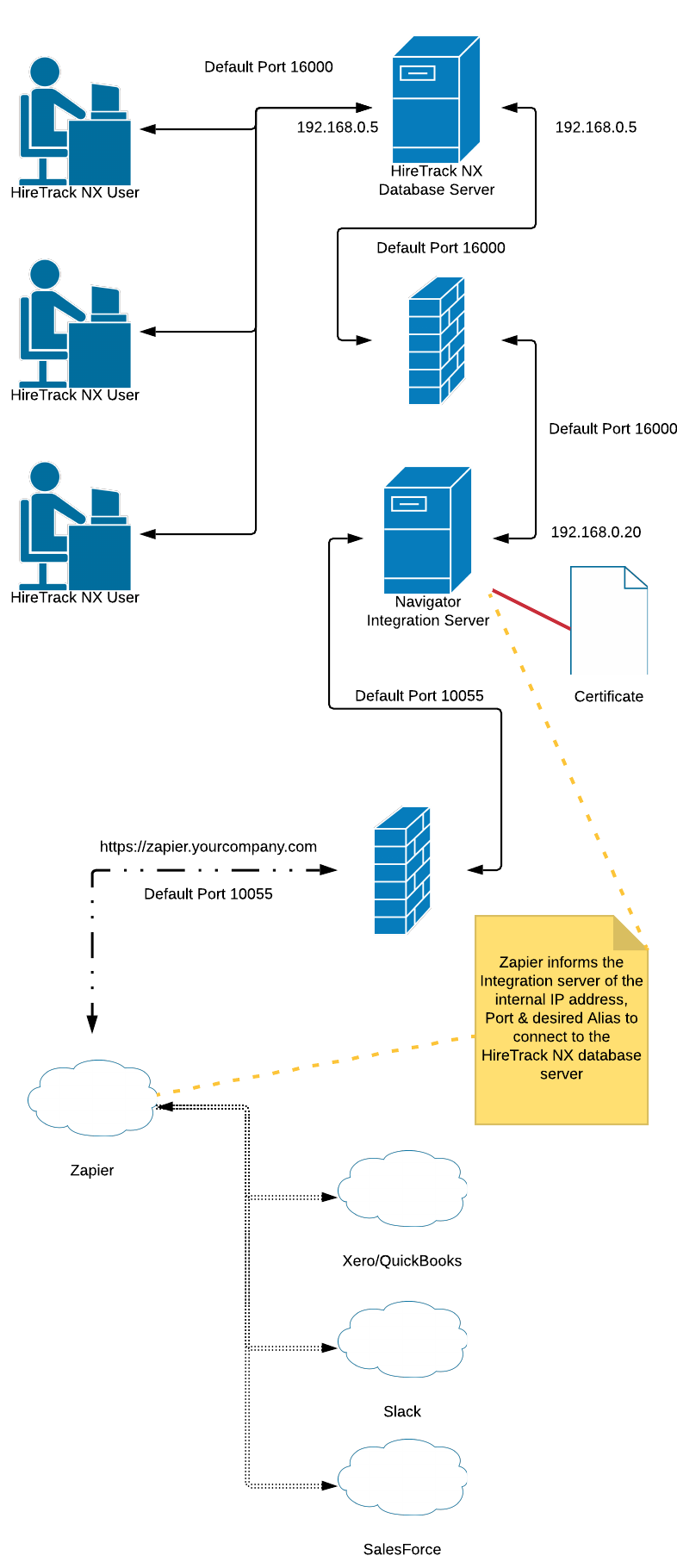
The HireTrack NX Integration Server needs to be downloaded and installed on a computer on your network. It doesn't need to be the same machine as your HireTrack NX database server - in fact it's best if it's not. As Zapier needs to talk to the HireTrack NX Integration Server, this machine will need access to the outside world and the outside world will need access to it.
During the configuration of the HireTrack NX Integration Server you will be required to select a suitable TCP/IP Port. Port 10055 is the default. You will need to make sure that this port can receive connections from the internet.
Although you can connect Zapier to HireTrack NX by simply using an IP address, it is recommended that you use a domain name for example zapier.mycompany.com or hiretrack.mycompany.com.
NOTE: Configuring the domain name is beyond the scope of this article and is best done by your IT department or Internet provider.
To ensure that the information sent between Zapier and HireTrack NX is secure the connection is made over https - the same protocol used when connecting to your bank. Unfortunately to benefit from this security involves using a security certificate to prove who you are and that has to be purchased (about £20/$20) which takes a couple of technical steps. See below.
If you want to use TRIGGERS then the HireTrack NX Integration Service will need to know which Alias to listen to, that is covered elsewhere.
How Zapier & HireTrack NX Interconnect
Getting a Security certificate
Already Have a certificate (technical explanation).
If you already have a security certificate, then you need to save the certificate along with the Key as a Personal Information Exchange (*.pfx) file.
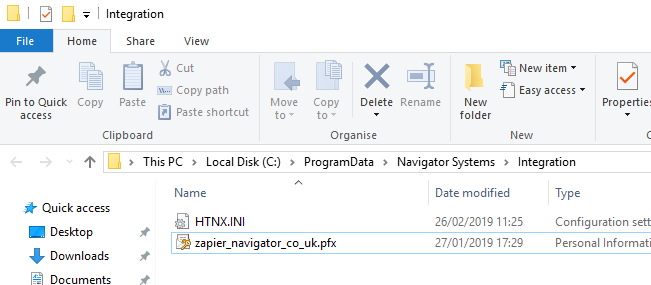
This file should be stored in the CSIDL_COMMON_APPDATA path - by default C:\ProgramData\Navigator Systems\Integration on the Integration server PC.
Need to Purchase a certificate (novice explanation).
If you need to purchase a certificate then you should follow the stages in this article. Although it seems complicated and uses unfamiliar terminology, it's actually quite easy as long as you follow each step carefully, and should take no longer than 15 minutes.
Configuring the application
The HireTrack NX Integration Service needs to be downloaded and installed.
Once, installed run the config application

When it opens, set the TCP/IP Port. Port 10055 is the default. You will need to make sure that this port can receive connections from the internet - both TCP & UDP connections are required.
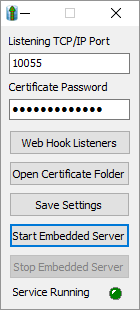
Click on the Open Certificate Folder button and copy & paste your certificate pfx file to this location.
Enter the password, used to encrypt the pfx file, in the "Certificate Password" edit box.
Press the Save Settings button. Then press the Start Server button. After a few seconds the Start Server button will be disabled and the Stop Server button enabled. This shows that the server is configured and ready to go.
- If you receive an error message similar to
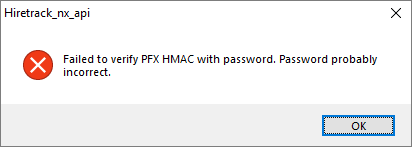
check that the pfx file is in the correct folder and that the correct password has been entered. - If you receive an error message
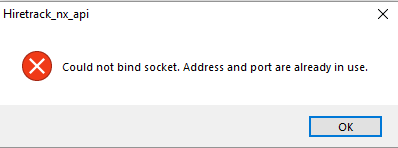
this means that the port you have selected is already being used by another app - check if the Navigator Systems Integration Service is running - the Service Running LED will be illuminated (or see Windows control panel | Services) - if it is, stop it and try again.
To test that the server is talking correctly to the Internet, you can use a site like api tester. https://reqbin.com/
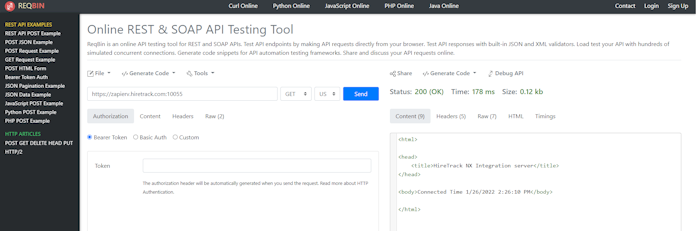
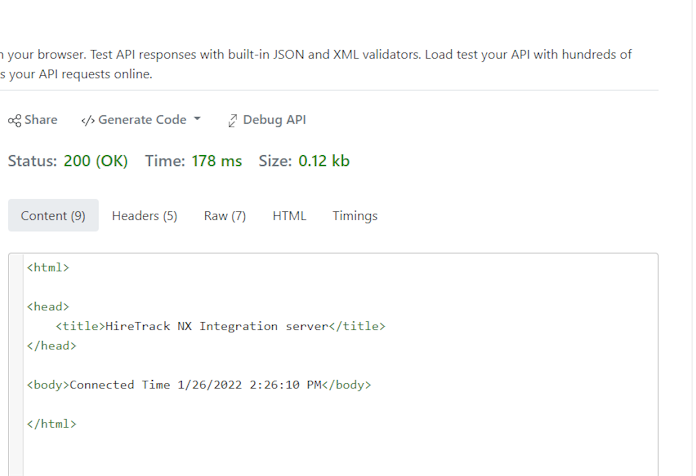
enter your external web address along with the opened port e.g https://zapier.hiretrack.com:10055 , make sure the web address starts with https and GET is selected, then press the SEND button. If all is good, after a second or two the web site will show STATUS: OK and the Response Body section of the form will show that you are connected to the HireTrack NX Integration server.
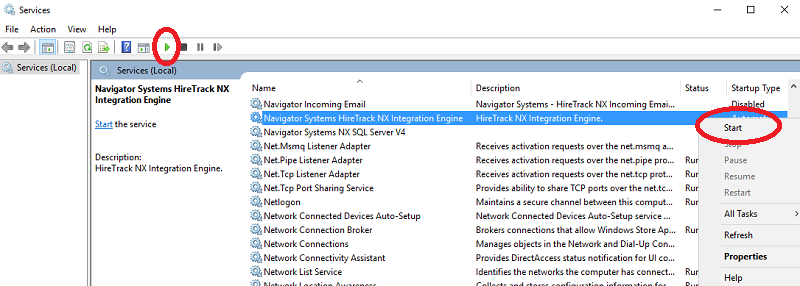
If all is working correctly, you can close the application and start the Windows service.
Configuring Zapier
Login to your Zapier Account or Sign up for a new one (14 day free trial)
https://zapier.com/sign-up/
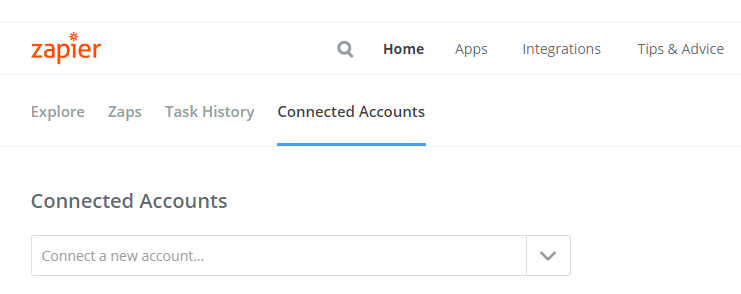
Navigate to the Connected Accounts tab and click on the Connect a new account... dropdown.
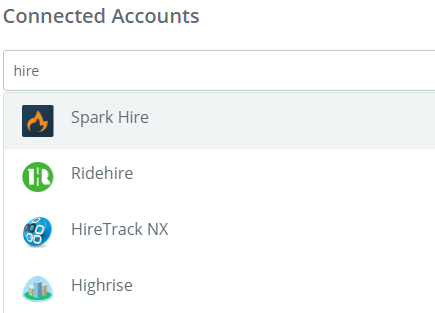
Search for HireTrack
A new browser window will popup requesting the information required to connect to your HireTrack NX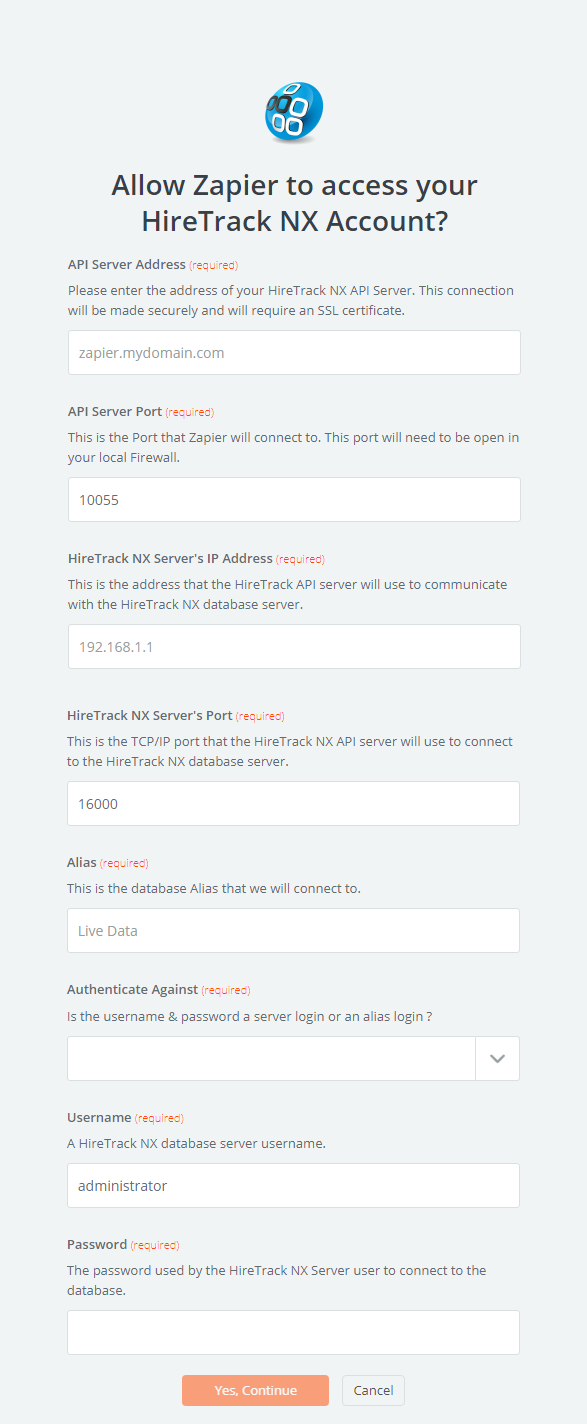
Fill in the Info as requested:
API Server Address: This is the address Zapier will use to connect to your HireTrack NX Integration Server - in our example zapier.navigator.co.uk
API Server Port: This is the port Zapier will use to connect to your HireTrack NX Integration Server. The default is 10055.
HireTrack NX Server's IP Address: This is the address that the HireTrack NX Integration Server will use to connect to your HireTrack NX Database Server. This is usually an internal address on your network.
HireTrack NX Server's Port: This is the port that the HireTrack NX Integration Server will use to connect to your HireTrack NX Database Server. The default is 16000
Alias: This is the database alias on the HireTrack NX Database Server.
Authenticate Against: There are two options here; Alias or Server. If Alias is selected then Zapier will use a regular HireTrack NX Client username & password to connect. If Server is selected then Zapier will use a username & password configured on the database server.
Username: The username Zapier will use to connect.
Password: The password Zapier will use to connect.
Once this has been entered, click on Yes continue and you will then be able to test your connection from Zapier to your HireTrack NX Integration server.
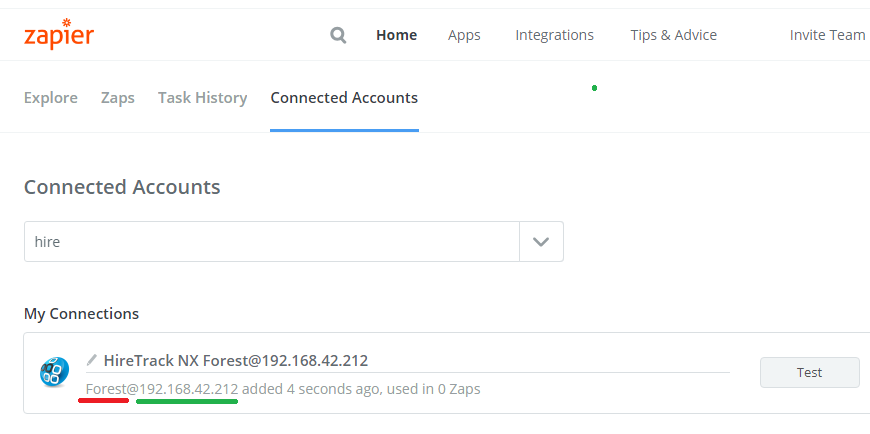
Note: The Connection is given the name of [alias]@[server IP], which allows you to create multiple connections to multiple Aliases, if required.
Comments
17 comments
I could not get the apitester to work.... I got stuck on this for quite some time. I concluded it was working when I navigated to https://zapier.navigator.co.uk (example) in a web browser and it returned "Connected Time 13/06/2019 09:38:29"
What error did you get in API tester ? Do you want to create a support ticket with the real info in it and I can take a look and see if you configured something wrong or whether the article needs some additional information adding ?
This is probably a newb question, but thats why I post it here. What I am trying to wrap my brain around is why I need a domain name.
Like most businesses, we already have a domain for our website and email, so I assume I would need a subdomain in order to keep the mycompany part of the zapier.mycompany.com address. Correct? But that website is located on some server out there in the ether that is provided by our hosting company. It is not located in my building where the HT Integration Server lives. So if I create this subdomain, how does the HT Integration Server connect to that server where the subdomain lives? Is that accomplished by the certificate? When I look at the settings page of the HT Integration Server there is only a place to enter the port, not the domain. So I’m trying to understand how Zapier finds the machine located in my building when the subdomain I tell it to look at is not living in my building. 🙃
Keith - This is done when you set up the sub-domain under your main domain. The hosting provider that holds your domain also holds your DNS records for that domain. DNS Records are like a 'phone book' for the internet giving addresses for specific domain names.
When you set up a sub-domain (i.e. zapier.mycompany.com) what you are really doing is creating a record that says "when someone on the internet asks for my sub-domain forward them to this IP address"
The IP address that you forward them to is the public IP address of your HT Integration Server in your building. (Make sure the IP address you use is publicly routable and that the port you configured for the HT Integration Server is allowed through your firewall)
So while the DNS records for your domain live on some server in the sky, those records can point to any IP address in the world.
Hope this helps!
Thanks Chad. So if I understand correctly, when setting up the sub domain it will ask me for a destination IP address, and that is where I can enter the address for our building’s router. Correct? I also hope there is an option for this to be a private subdomain as well. We wouldn’t want this “site” to be accessible by the public or search engines obviously,
Keith - Yes. Look for the place where you can configure the DNS records for your domain. You want to essentially add a record that points the subdomain name (i.e. zapier.mycompany.com) to that IP address. The type of DNS record you are creating is called an A record. (for reference: https://support.dnsimple.com/articles/a-record/)
Thanks. 👍
Andrew were you able to figure out the apitester at all? I’m stuck there too. I enter in the information, click Test, and nothing happens. The page just refreshes with all fields blank once again.
No. Skip past. Navigator agreed it was currently broken too. Other testers I found did not work either as they were not doing HTTPS.
Enter in a browser window. When it works it returns a very simple date stamp.
Hmmm. I'm not getting anywhere with this. Giving up. Nearly 20 hours invested.
So the only success I have had from a connecting standpoint is if I “Disable SSL Certificate Checks” from the settings area of Zapier’s website. Only then can I connect to my server. I haven’t actually tried a zap, just finally got some sort of confirmation that I’m successfully connected.
As for the SSL problem, the only thing I can fathom is that is has something to do with the Public IP address of my router. My zapier subdomain is created, I purchased a certificate per David’s instructions, installed it on that site and on my host server. The installation process was a little different on my host machine since it is running Windows 7. I think things are in the right place, but don’t really know. Tried several configurations without any difference in the results.
If I go to zapier.tcfurlong.com through a browser from a random machine on my network, I do see the login for my office router (so the DNS is correct), but it does come up as unsecure. When I look at the certificate for that, it is NOT any of the information from the certificate I purchased. I think that is the certificate for my public IP address? What I believe is happening is that I am secure until I get to my building’s router. I don’t know though. If I do the same thing from the computer I am using as the server host, the webpage still comes up as unsecure, the certificate is that weird one and not the one I purchased, but under Security>Technical Details, it says the Connection IS Encrypted. So maybe that is because the certificate is installed on that machine? I don’t know. Its very annoying.
If i re-enable the SSL check setting on Zapier, the error I get is DataPostError: Problem creating Connected Account Test. (Authentication failed: Could not verify SSL certificate.)
Keith - The good news is that even with disabling SSL checks from inside Zapier, as long as their is an SSL certificate in place and you use https:// then the traffic between Zapier and your integration server is encrypted. All you are doing by disabling the check in Zapier is telling it to not check the validity of the SSL cert.
While this is not the ideal configuration. It does not mean you are unprotected.
SSL certs need to match letter for letter the domain (and subdomain) they are protecting. IP address really has nothing to do with it, it's the Subdomain name that is getting protected.
Google info on Let's Encrypt and the OpenSSL initiative. This is an organization that provides free SSLs and has lots of good info on their site.
Best,
Chad
Thanks Chad. The subdomain name and the certificate do match letter for letter. I was very careful about that. Installing the certificate on the Windows 7 machine didn’t match David’s instructions, so it took several attempts, but I don’t think that is the issue as I get the unsecure errors just when using a browser. And again, that certificate that I see when looking at my public IP (router page) through the browser is not the certificate I purchased.
Best to raise this as a support ticket. We can track it properly and then update the KB if required.
Well I’m starting to make some progress with my issues. Apparently the hosting company for our website is saying that the key generated by the crt files supplied by the SSLstore do not match my certificate. As a result, my certificate is being broadcasted as Self Signed. This will cause the browsers to believe the site is not secure, and also throw those errors when trying to connect from Zapier’s website when the SSL checks are enabled. But like Chad said, I do have a secure encrypted pipe that will work with Zapier as long as the SSL checks are turned off. In my own testing with the browser, once I get past the security warnings, I do see the server timestamp as Andrew had mentioned. So thats all good news and a confirmation of the suggestions from the guys up here on the board. So thank you all for that. While I could just proceed like this, I am going to try to figure out how to either regenerate a new key, or purchase a new certificate if I have to. I would prefer that this is setup properly. If anyone has any insight on how I might be able to go about that, it would be appreciated. I will ultimately need a file with a .key extension.
Looks like the API tester is now working again
i'm at the zapier refusing my ssl certificate stage of this process.... i found this site will check custom port ssl certificates (no account required) which may be useful to some others following this process
https://www.geocerts.com/ssl-checker
Please sign in to leave a comment.