
One of the powerful aspects of the Navigator NX SQL server is an built in Webserver and powerful scripting functionality. Because the scripting engine has access to the database it's possible for the Webserver to generate all manor of useful information that can be displayed in a web browser on screens in your offices and warehouses.
This is an advanced facility that is not covered by our standard support contracts, and only "power users" with IT skills are likely to have the ability to produce their own scripts. However, as an example of what can be achieved we are pleased to provide a "sample web app", which is a "White Board" to show the warehouse staff what lists still require prepping.
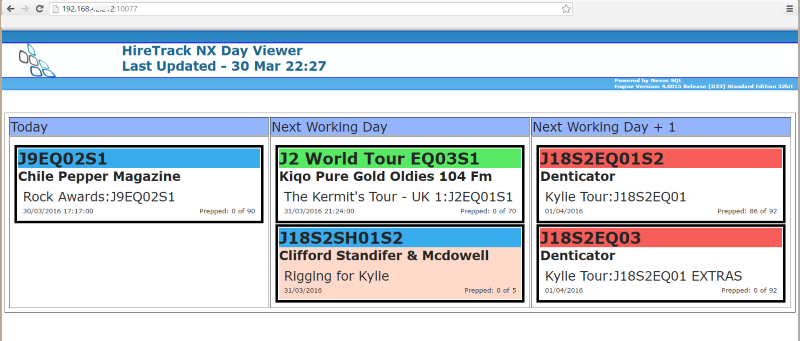
The web page auto refreshes and shows lists that haven't been fully prepped and are due out today or the next few days. The header colour indicates the status and the salmon background indicates subhires.
To install the script, simply follow these steps
- Download the attached DayBook.zip file.
- Extract it to it's own folder, keeping the structure of the folders from the zip
- Give the user that runs the Navigator NX server (by default Navigator_SQL) access rights to this folder and files
- Navigate to the Users page of the Navigator NX server (via it's web interface) and create a new user called DayBook, choose a password and set the Tokens to RW. Press Add User and then Press Save Changes
- Navigate to the Alias page and make a note of the Alias Name.
- Navigate to the folder created in Step 2 and open the file index.nxscript using NotePad.
- Edit Line 8 - MyPassword = 'PPPPP'; to whatever password you chose in step 4 e.g MyPassword = '1234';
- Edit Line 5 - DataBaseAlias = XXXXX'; to your database alias e.g DataBaseAlias = 'Live Data';
- Save the index.nxscript file.
- Navigate to the AppServer - Webscripts page of the Navigator NX server
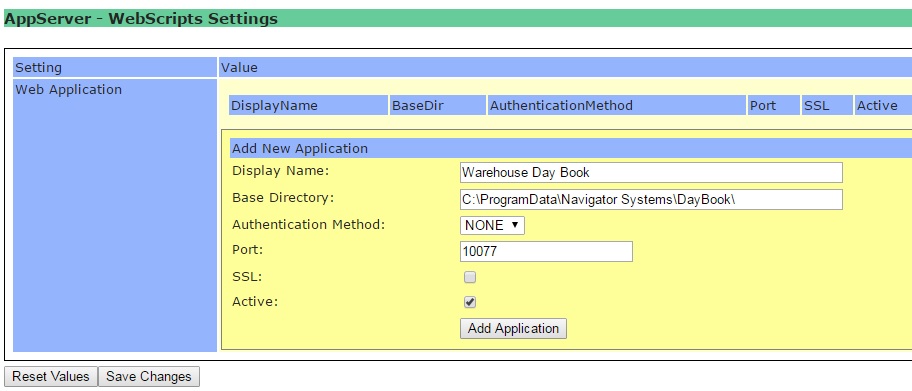
- Enter the Display Name as Warehouse Day Book
In the Base directory field, enter the name of the folder you created in Step 2, make sure that it's the full path to the index.nxscript file.
Leave the Authentication Method as NONE - we don't want users to have to login via their browser to run this script
Choose a Port that's not in use by any other application - I've used 10077
Check the Active box
Press the Add Application button and then Press the Save Changes button - Open up your browser and navigate to the Navigator NX SQL server's address, but instead of port 10088, use port 10077 e.g http://127.0.0.1:10077
NOTE: this sample application is supplied "as is". We think that it's useful in it's own right but should you want assistance to modify it, or have it modified by us, or have any other web interface supplied, then this work does not fall within your standard support contract and would be considered to be a chargeable service. P.O.A.
Comments
34 comments
I also now have 14 column (2 week) scripts as well. These still only show 5 columns at a time, but now you can scroll to the right...
Hi Keith Boreham
What a job! This is exactly what I’ve been looking for. Would you be so kind to email your 3 most recent scripts (including dark mode) *edit - email address deleted* 😊
You’re a hero
Cheers, Ben
Sent. Happy to share.
Keith Boreham Is there any chance of sharing the files with me please, my email is info@wwave.com.au I was looking at doing the scroll thing, but I want three on the screen with some and others 5 and 7 the scroll out to 14 days. I am guessing that will be an easy fix in css.
Thanks
Tom
Please sign in to leave a comment.